 spa77.works SMPEconomy survival
Player guideRequest board
Request board
Illustrations and screenshots may show Japanese labels. The text below explains the same features in English.
The request board lets players post tasks with rewards.
Use it either to ask someone to do something or to earn money by helping others.
The main command to remember is /irai.
Only request creation requires chat input. Finding, accepting, delivering, approving, and rating requests are handled by clicking items in the menus.
For requests involving crafted items or gathered resources, a dedicated delivery box lets you transfer the items through the system.
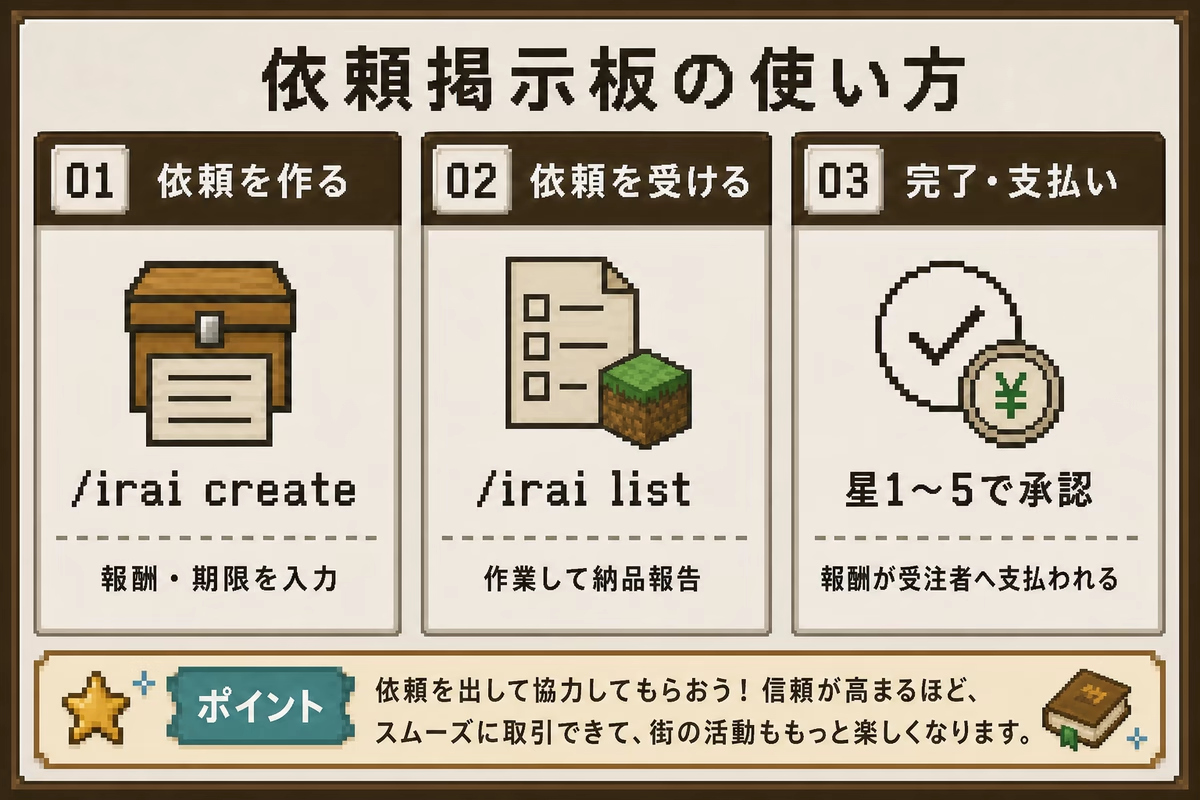
Overall process
Requests follow these 5 steps. For inactivity handling, see Automatic handling of inactivity below.
1. Create a request
The requester opens the board and chooses 「依頼を作成する」 (Create request), then enters a title, description, reward, deadline, acceptance requirement, and whether item delivery is needed.
The reward and fee are charged together. The reward is held by the board.
2. Find and accept a request
The worker chooses a request from 「依頼を探す」 (Find requests), then clicks the acceptance button on its details screen.
3. Report completion
After finishing the work, the worker reports completion from 「自分の依頼」 (My requests).
If item delivery is required, put the items in the delivery box first.
4. Approve completion
The requester checks the result and approves it from My requests.
Approval requires a rating of 1–5 stars and is confirmed together with that rating.
If the delivery is unsatisfactory, choose 「やり直しを依頼」 (Request revision) instead of approving it.
5. Pay the reward
Approval releases the held reward to the worker.
For item-delivery requests, the delivery-box contents move to the requester’s vault.
Opening the board
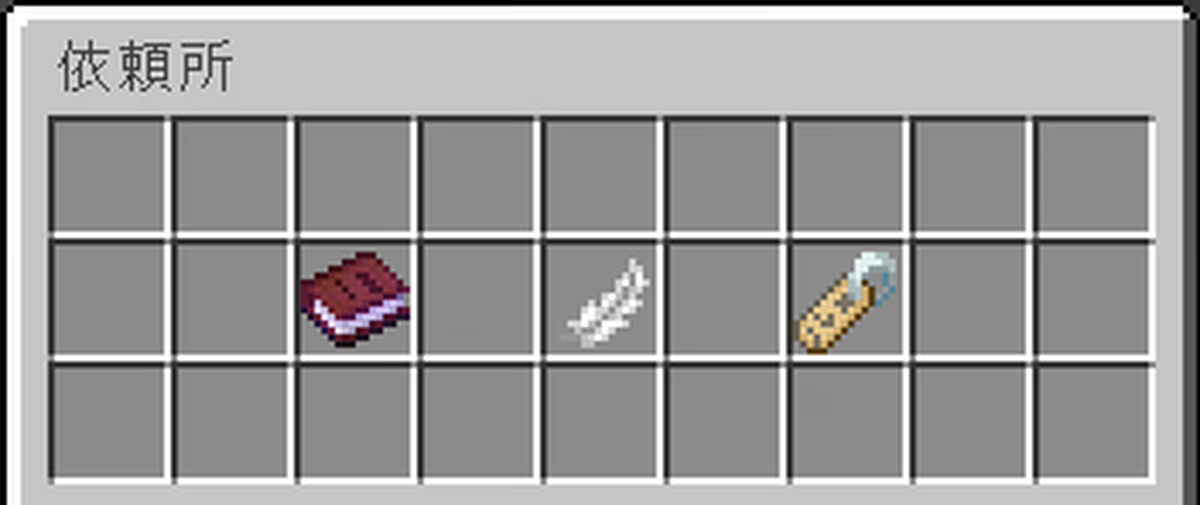
/iraiThis opens the menu shown above.
You can use it from anywhere.
Choose one of these 4 icons to continue.
| Icon | Action |
|---|---|
| Book: 「依頼を探す」 (Find requests) | Open available requests |
| Feather: 「依頼を作成する」 (Create request) | Start entering a new request |
| Name tag: 「自分の依頼」 (My requests) | View requests you posted or accepted |
| Chest: 「保管庫」 (Vault) | Open items awaiting collection |
Finding and accepting requests
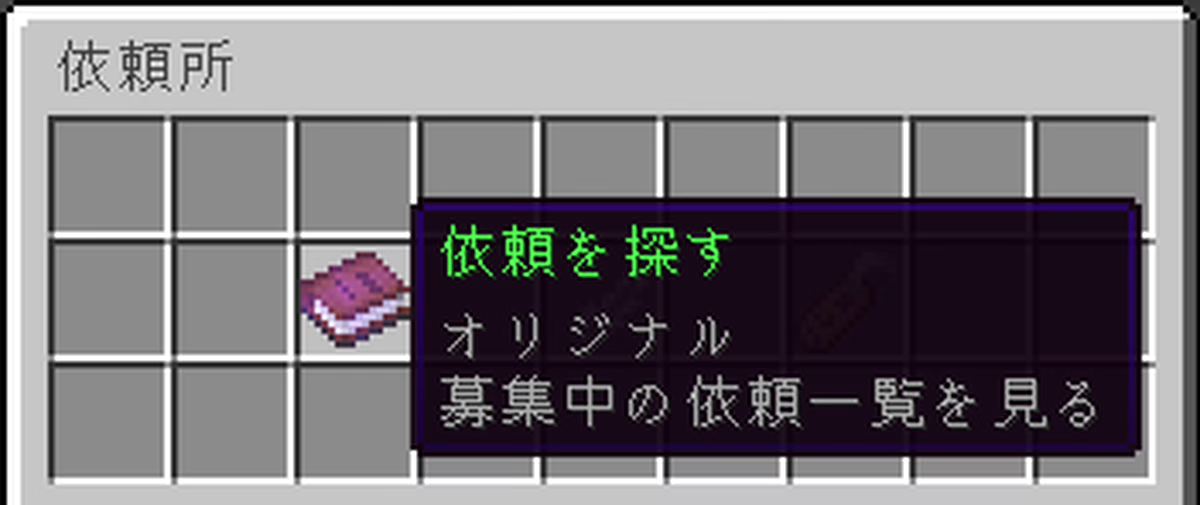
Click Find requests to see available requests.
Select one for details, then click the green 「この依頼を受注する」 (Accept this request) item to accept it.
The list and details show whether item delivery is required.
You cannot accept another request while you have one actively in progress.
After reporting completion, a request awaiting approval no longer counts as active, so you may accept the next one.
If you want to stop after accepting, cancel your acceptance from My requests.
There is no penalty.
For item-delivery requests, items already in the delivery box return to your vault.
You cannot cancel your acceptance after reporting completion.
Some requesters set a minimum star rating for acceptance.
Requests whose requirement you do not meet appear in red in the list and details. Clicking them does not let you accept.
Players who have never received a rating may accept regardless of this requirement.
Accepting requests from Discord
Once you have verified your Minecraft account through Discord, you can browse and accept open requests as that linked player in the “依頼掲示板” channel.
Open “全件を見る” and check the description, reward, deadline, required rating, and whether item delivery is required. Press “受諾” for the request you want, then “受諾を確定” to accept it.
You cannot accept your own request or one that has closed. Rating requirements and the limit on active requests are the same as for in-game acceptance.
Continue with delivery, approval, and ratings through /irai in-game.
Creating a request
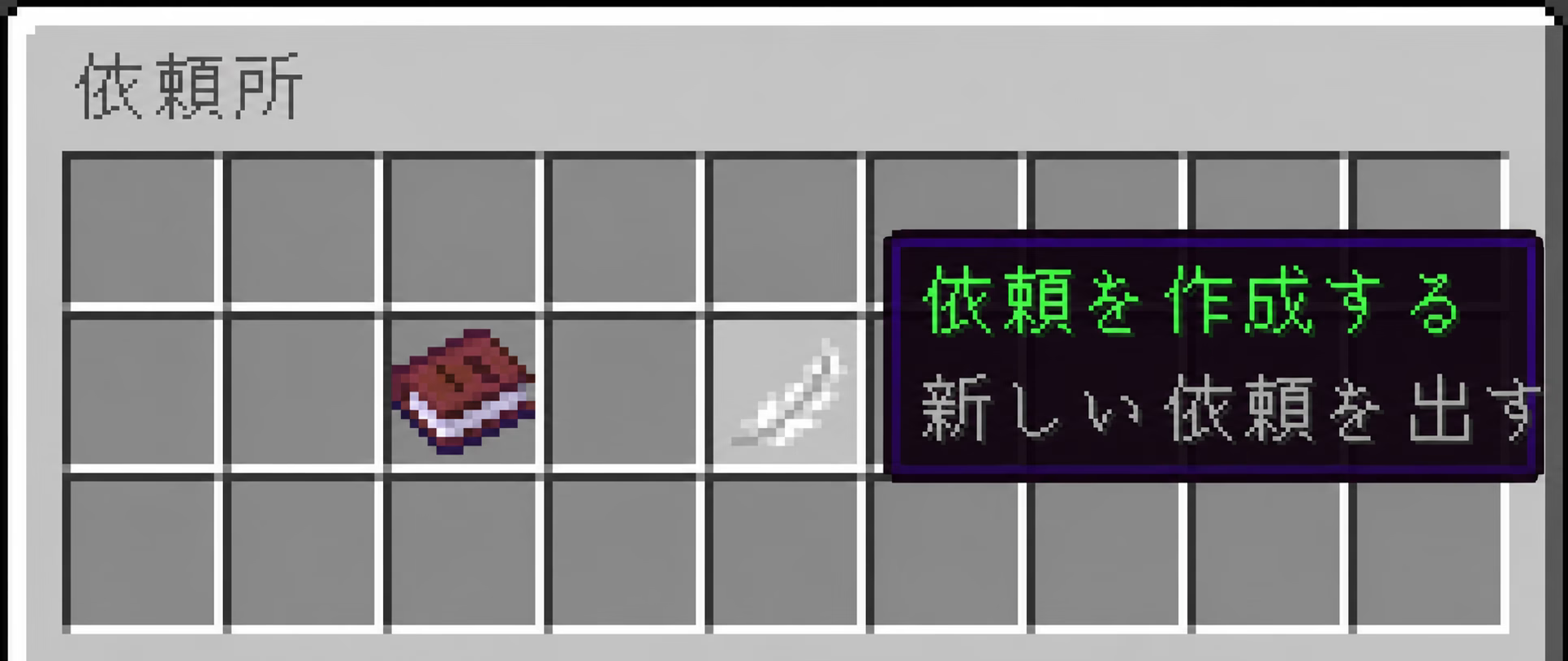
Click Create request and follow the chat prompts in order.
- Title: up to 32 characters
- Description: up to 200 characters
- Reward: a whole number from 1 to 1,000,000 Spa Coins
- Deadline: a whole number from 1 to 168 hours, up to 7 days
- Minimum star rating: an optional whole number from 0 to 5; enter 0 or press Enter without text for no requirement
- Item delivery: enter 「はい」 (yes) or 「いいえ」 (no); an empty answer defaults to no
Invalid input prompts you to retry that field, rather than starting over.
Choosing yes for item delivery adds a delivery box to the request.
Use it when you want to receive crafted items or gathered resources.
Canceling entry
The following command cancels while you are entering a new request in chat.
Logging out or leaving chat input idle for 120 seconds also discards the unfinished entry.
No reward or fee has been charged yet, so restarting at this stage costs nothing.
/irai cancelCreating a request immediately charges both the reward and a fee of 10% of that reward.
You cannot create it unless your balance covers both.
New requests are announced in global game chat. Discord also receives the creator, title, reward, and recruitment deadline.
Discord notifications
Notifications have anti-spam controls and sending limits, so not every request is necessarily announced immediately. Check /irai in game for current availability.
See Money and protection below for details.
Item delivery and delivery boxes
An item-delivery request gets its own 27-slot delivery box, the size of a single chest.
The worker deposits the finished items, and the requester checks them before approving.
- Open the box through its chest icon in My requests or the request details.
- Only the currently assigned worker, while the request is active, can move items in or out. Use ordinary inventory controls, such as dragging or shift-clicking on a computer, or the usual controls on phones and consoles.
- Contents are saved after every move. A server restart while the box is open does not lose them.
- You cannot report completion on an item-delivery request with an empty box.
- The requester can inspect the contents even before completion is reported, but cannot take items from this screen.
- Reporting completion locks the box. The worker can no longer change its contents.
If something is missing, the requester may choose Request revision.
This returns the request to active status and unlocks the box, allowing the worker to correct the delivery and report again.
There is no limit on revisions.
A revision restarts the waiting periods for automatic approval or forced cancellation.
The final item destination depends on how the request ends.
In every case, items are retained in one party’s vault rather than discarded.
| Event | Reward | Delivery-box contents |
|---|---|---|
| Requester approves with a rating | Paid to worker | Sent to requester’s vault |
| Automatic approval after an unanswered completion report | Paid to worker | Sent to requester’s vault |
| Requester asks for revision | Remains held | Stay in the box |
| Worker cancels acceptance | Remains held by board | Returned to worker’s vault |
| Requester forcibly cancels an inactive acceptance | Remains held by board | Returned to worker’s vault |
| Staff forcibly close the request | Refunded to requester | Returned to worker’s vault |
Vault
Transferred or returned items go into a vault rather than dropping at your feet.
Open it with the following command or the chest in the main menu.
/irai vault- Click an item to collect it.
- Items that do not fit in your inventory stay in the vault.
- Each item shows why it was stored, when it was stored, and its expiry date.
- Transfers work while the other player is offline, allowing trades across different schedules.
Vault items are deleted 30 days after deposit. Notifications arrive 3 days and 1 day before deletion. Collect items promptly rather than leaving them there.
More than 27 stored entries triggers a collection warning, but does not block further deposits.
Approval and item returns are not blocked by a crowded vault, so it will not stall a request.
Reporting completion, approval, and ratings
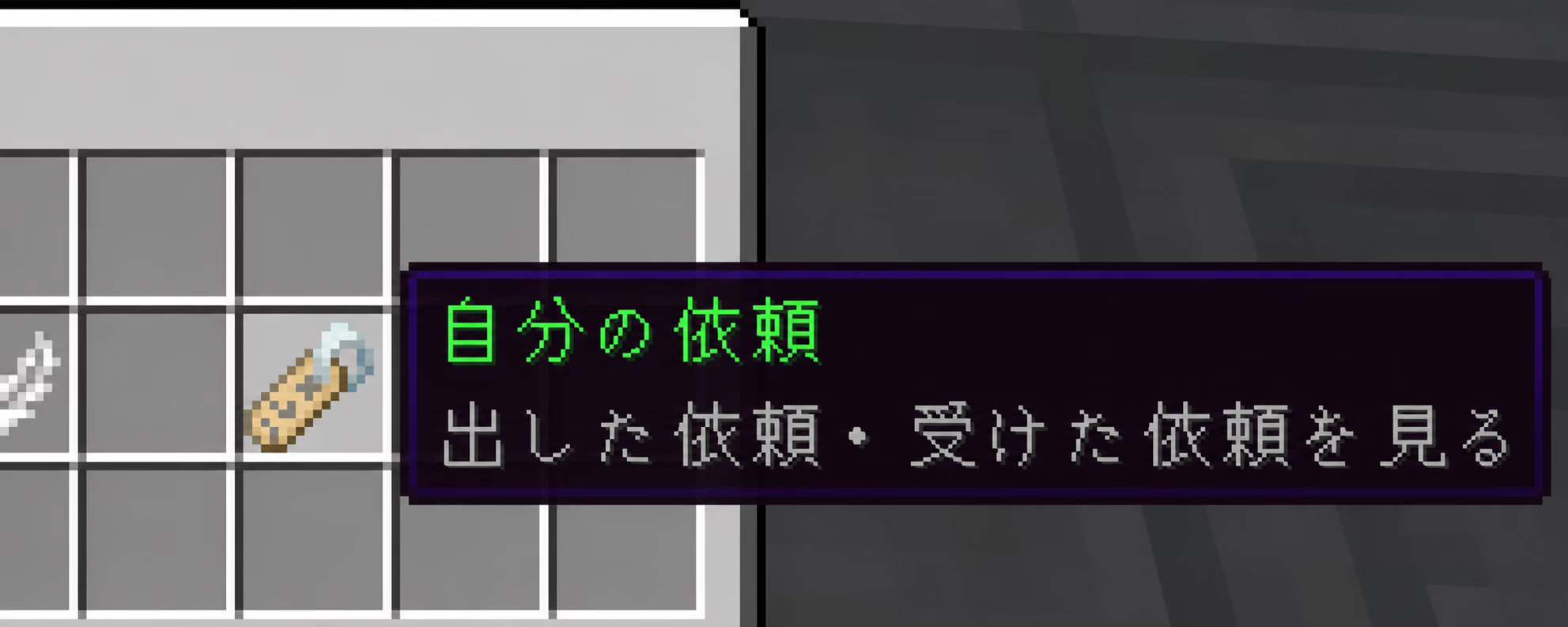
My requests lists requests you posted and accepted.
Colored action items show what you can do next. Click the relevant item to proceed.
| Displayed action | Applies to | Result |
|---|---|---|
| 「クリックで納品完了を報告」 (Report completion) | A request you accepted | Notify requester and wait for approval |
| 「クリックで受注を取り消す(ギブアップ)」 (Cancel acceptance) | A request you accepted | Reopen it for recruitment, without penalty |
| 「クリックで納品ボックスを開く」 (Open delivery box) | An item-delivery request you accepted | Move delivery items in or out |
| 「クリックで納品ボックスの中身を確認」 (Inspect delivery box) | An ongoing item-delivery request | View contents without taking them |
| 「クリックで完了承認(星評価が必須です)」 (Approve; rating required) | A request you posted | Open the 1–5-star rating screen |
| 「クリックでやり直しを依頼(差し戻し)」 (Request revision) | Your request with completion reported | Return to active work so the worker can revise |
| 「クリックで取り下げ」 (Withdraw) | Your request still recruiting | Withdraw it and refund the reward |
| 「放置されています/クリックで強制的に募集中へ差し戻す」 (Inactive; force back to recruitment) | Your request with an inactive worker | Cancel the acceptance and reopen recruitment |
Choosing Approve opens a screen with 1–5-star items.
Clicking a star confirms approval and the rating immediately.
Closing without choosing a star does not approve or pay.
Ratings have no comment field; only the star count is recorded.
Approval pays the held reward to the worker and records the requester’s 1–5-star rating of that worker.
For item-delivery requests, the contents move to the requester’s vault at the same time.
Ratings are one-way, from requester to worker. Workers do not rate requesters.
Automatic handling of inactivity
The system provides safeguards if either party stops acting on a request.
If the requester does not respond
After the worker reports completion, these steps apply if the requester does not check and approve it.
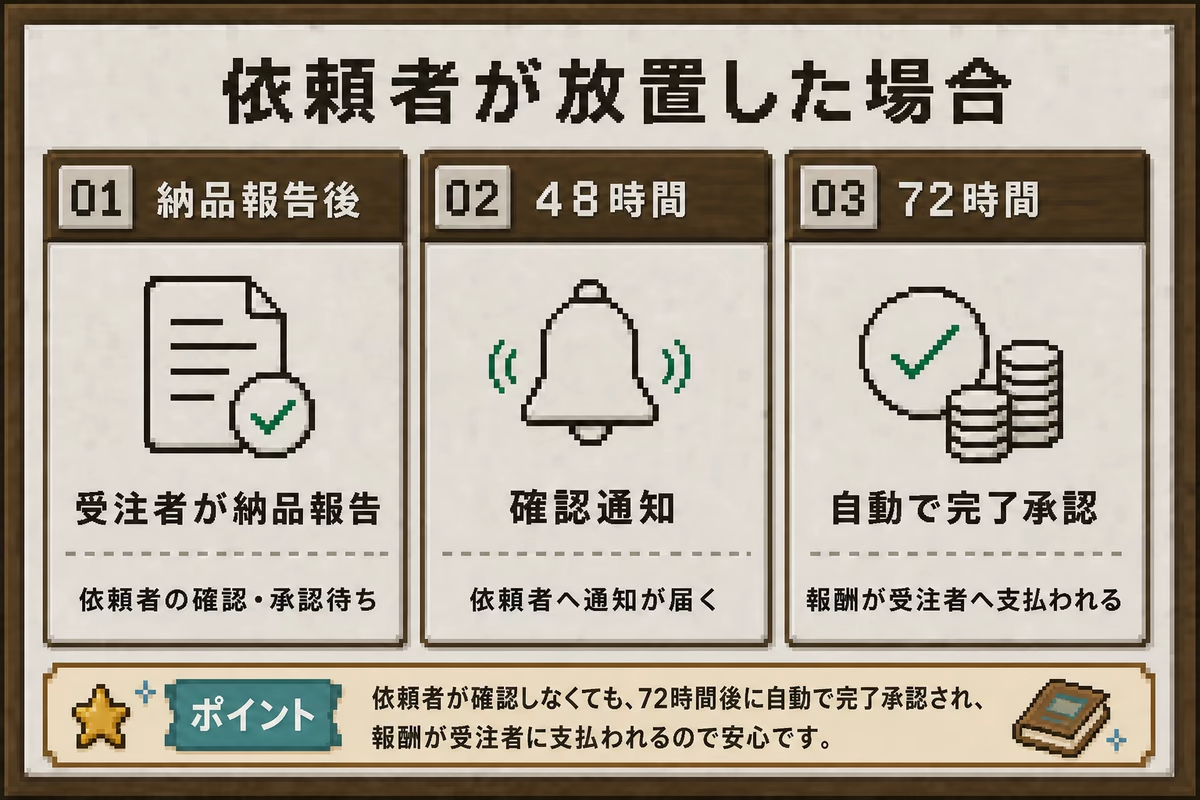
- After 48 hours, the requester receives a reminder.
- After 72 hours, completion is automatically approved and the worker is paid.
- For item-delivery requests, contents also move to the requester’s vault.
- Automatic approval does not record a star rating. Approve manually if you want to leave one.
If the worker does not respond
If the worker neither reports completion nor cancels after accepting, these steps apply.
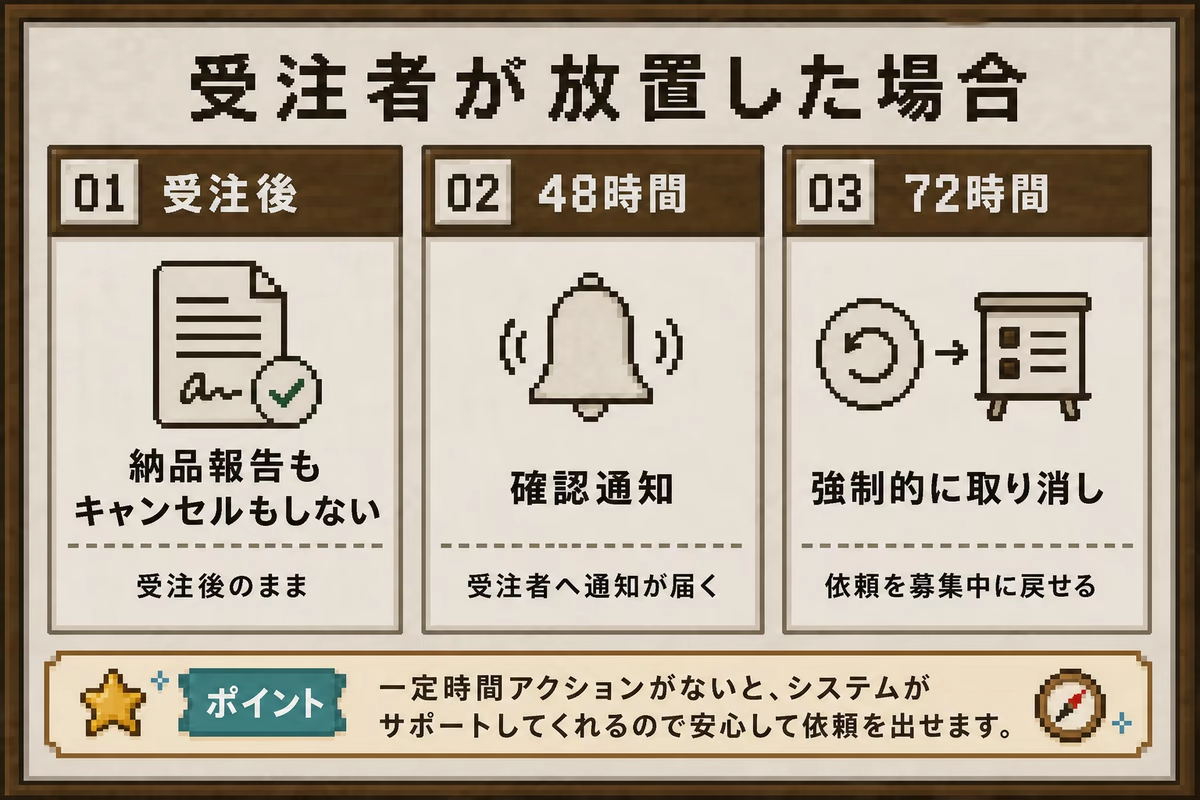
- After 48 hours from acceptance, the worker receives a reminder.
- After 72 hours, the requester may forcibly cancel acceptance through My requests and reopen recruitment.
- The worker receives no penalty. Other players can accept the request again.
- Delivery-box items return to the worker’s vault.
Notifications generated while you are offline are delivered when you next log in.
Money and protection
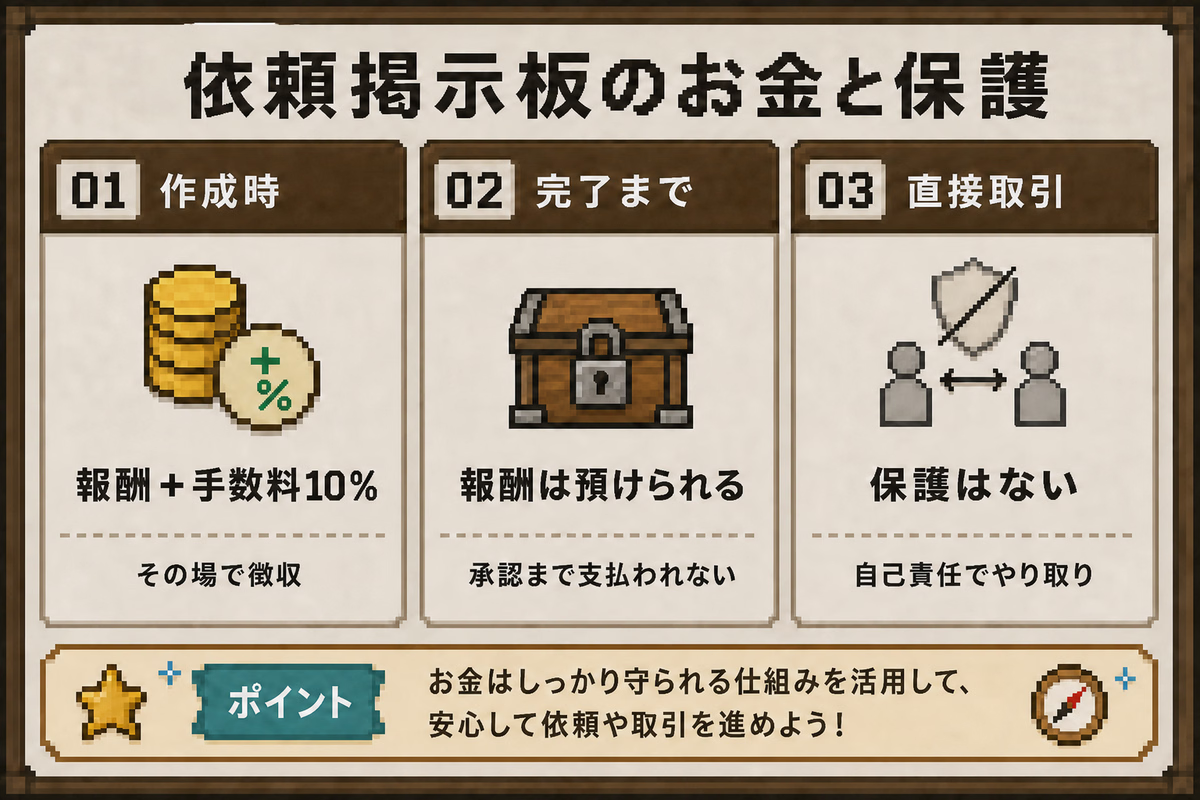
The 10% creation fee is consumed immediately. It is not refunded when a request is withdrawn or expires.
The reward itself is held by the board until completion is approved. Neither player has it in the meantime.
Direct agreements and private player-to-player payments outside the board are not prohibited.
However, they do not have any of the board’s 5 protections.
- Reward holding until completion
- Item delivery
- Automatic refund when recruitment expires
- Approval linked to payment
- Inactivity handling
Staff do not compensate losses or return items if a direct agreement results in unpaid rewards or unfinished work.
Use the board, /irai, when you want these protections.
Withdrawing a request
The requester can withdraw a request from My requests only while it is still recruiting and nobody has accepted it.
The held reward is refunded in full.
Once accepted, the requester cannot cancel it unilaterally.
The forced-cancellation procedure under Automatic handling of inactivity is available when its conditions are met.
When the deadline expires
A request that remains unaccepted until its deadline expires automatically. The held reward, excluding the fee, is refunded to the requester.
Once a request has been accepted, passing the deadline does not automatically expire it. See Reporting completion, approval, and ratings and Automatic handling of inactivity for what happens afterward.
Record retention
Completed, withdrawn, and expired request records are automatically deleted after 30 days.
If you need evidence of an interaction, take screenshots before its record disappears.
Command reference
These commands are shortcuts to the corresponding screens.
| Command | Screen or action |
|---|---|
/irai |
Main menu |
/irai create |
Start entering a request, like Create request |
/irai list |
Available requests, like Find requests |
/irai my |
My requests |
/irai vault |
Vault |
/irai cancel |
Cancel unfinished request-creation input |
Accepting, canceling acceptance, managing delivery boxes, reporting completion, approving, rating, requesting revisions, and forcing an inactive acceptance to cancel are performed by clicking menu items rather than commands.
Common problems
| Problem | What to check |
|---|---|
| You cannot create a request | Reward must be 1–1,000,000, deadline 1–168 hours, title at most 32 characters, description at most 200. Have enough funds for reward plus fee. |
| You cannot accept a request | You may already have an active request or not meet the minimum rating. |
| You cannot report completion | An item-delivery request requires a nonempty delivery box. |
| You cannot take items from the delivery box | Only the active worker can change it. After reporting, it stays locked until approval or revision. |
| The reward has not been paid | It remains held until requester approval, or automatic payment 72 hours after the completion report. |
| Your completion report has not been approved | The requester may not have checked yet. Approval and payment occur automatically after 72 hours. |
| You approved but have no items in hand | Items go to the vault, not the ground. Collect through /irai vault. |
| Your accepted request was canceled unexpectedly | After 72 hours without a completion report or cancellation, the requester can cancel acceptance. Delivery items return to your vault. |
| A request disappeared | It may have expired while still recruiting. Check My requests. |
| 「報酬の支払いに失敗しました」 (Reward payment failed) appears | Rare payment failures can occur. Contact staff. |
| A request is completely stuck | Staff can forcibly close it. The reward returns to the requester and delivery items to the worker’s vault. Contact staff on Discord. |
| No rating was recorded | Only requesters rate workers. Automatic approval does not assign a rating. |