 spa77.works SMPEconomy survival
Player guideLand protection
Land protection
Illustrations and screenshots may show Japanese labels. The text below explains the same features in English.
Claim land to protect it from other players.
Claims prevent unwanted block damage, chest access, button and lever use, interference with animals, and similar actions.
Where land protection works
Land claims work only in the Building World. That world requires Lv1, so you can use claims from Lv1 onward.
A golden shovel cannot claim land in the lobby or resource worlds, including Resource Server 2, the Resource Nether, and the Resource End, even if you are Lv1 or above.
Build your protected base or warehouse in the Building World.
For chests placed in resource worlds, use individual chest locks.
Basic claiming steps
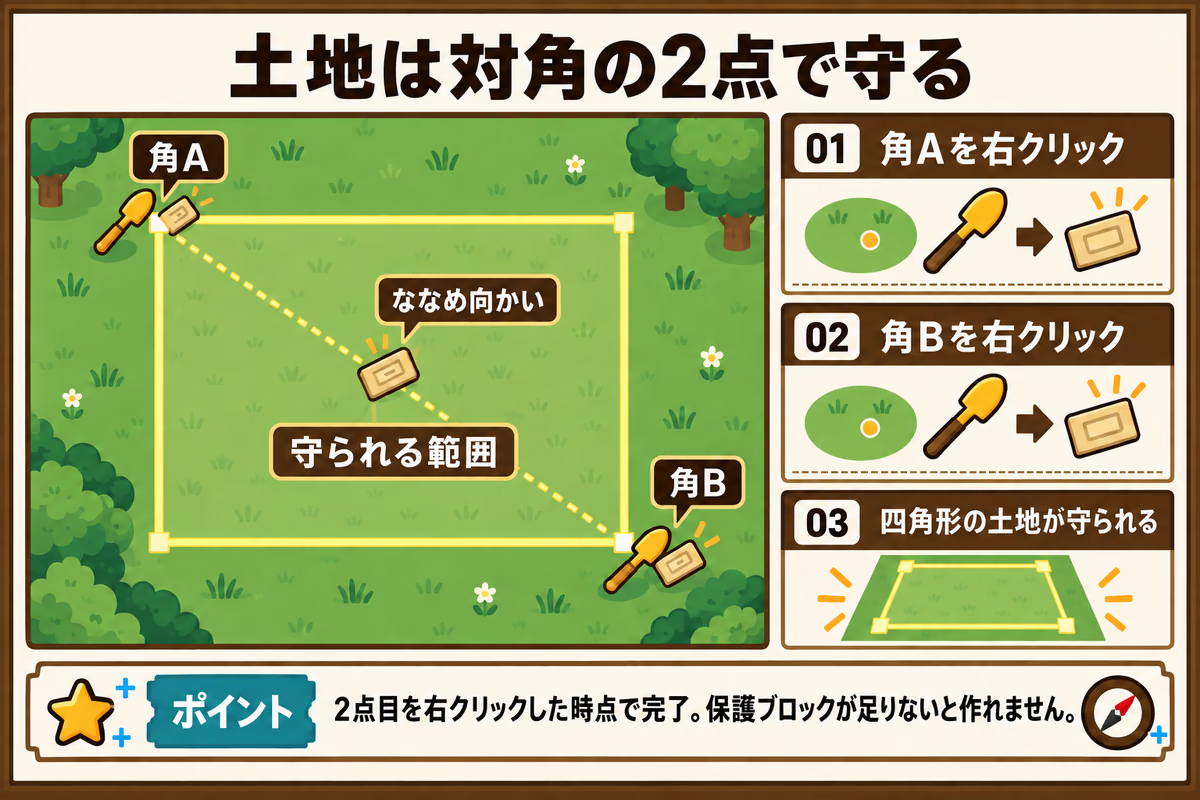
In the Building World, right-click two opposite corners with a golden shovel to create a claim.
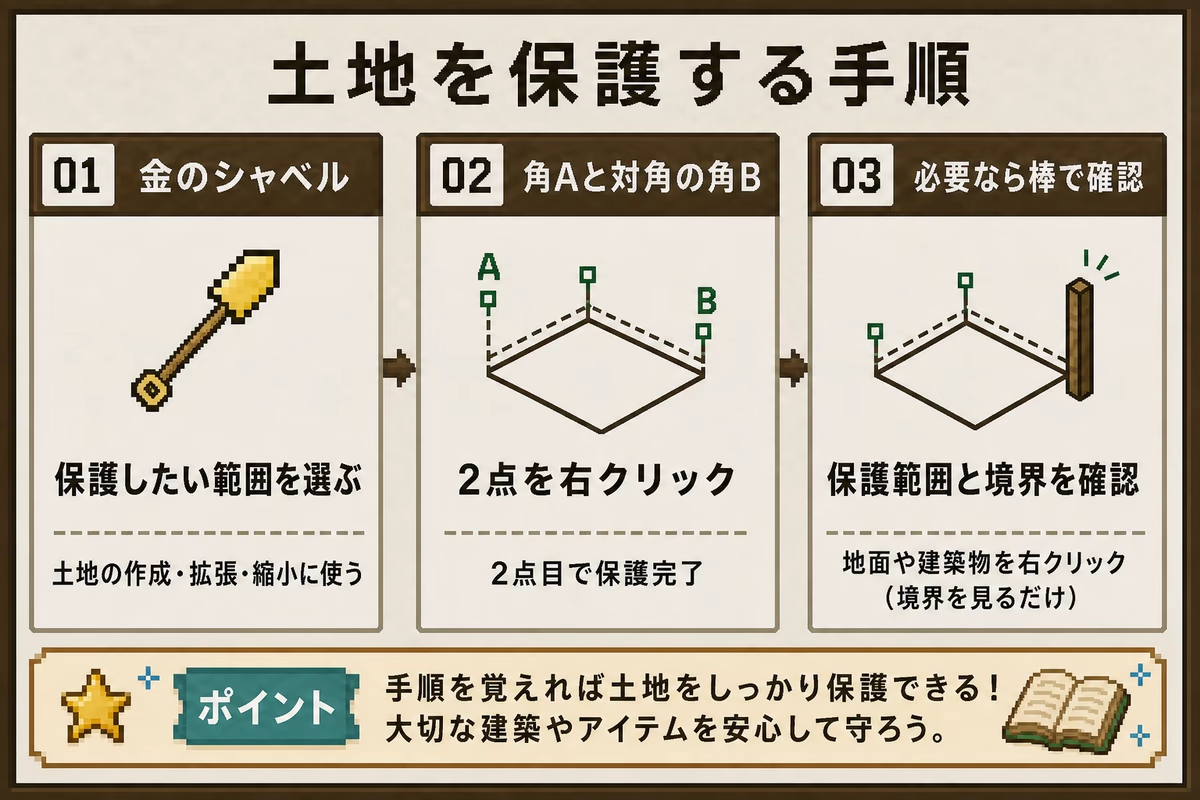
1. Get a golden shovel
Use a golden shovel to create, expand, or shrink claims.
It does not have to be a special item. A normal golden shovel crafted at a crafting table works.
You can also receive one free per day with this command.
/claimshovelThe command gives one shovel per day
Using it again on the same day tells you that you have already received today’s golden shovel.
You can receive another after midnight, 00:00 Japan Standard Time (JST).
The phone offers the same action through /phone, 「その他の機能」 (Other features), 「遊びと記録」 (Activities and records), and 「土地を守る」 (Protect land). You can receive the shovel at Lv0 and keep it until you reach Lv1.
2. Right-click two opposite corners
With the golden shovel, right-click corner A and the diagonally opposite corner B of the area you want to protect.
This protects the rectangle between them.
The claim is complete as soon as you right-click the second corner.
Creation fails if you do not have enough claim blocks, the allowance used to protect land.
3. Inspect the area with a stick if needed
Hold a stick and right-click the ground or a building to see the claim’s boundaries and owner.
Common commands
| Goal | Command |
|---|---|
| Abandon the claim you are standing in | /abandonclaim |
| Abandon all your claims | /abandonallclaims |
| Grant building and breaking permission | /trust <player> |
| Revoke permission | /untrust <player> |
| Allow only controls such as buttons, levers, and beds | /accesstrust <player> |
| Also allow containers, furnaces, animals, and similar access | /containertrust <player> |
| List trusted players | /trustlist |
| List your claims | /claimslist |
| Escape when trapped | /trapped |
Understanding trust permissions
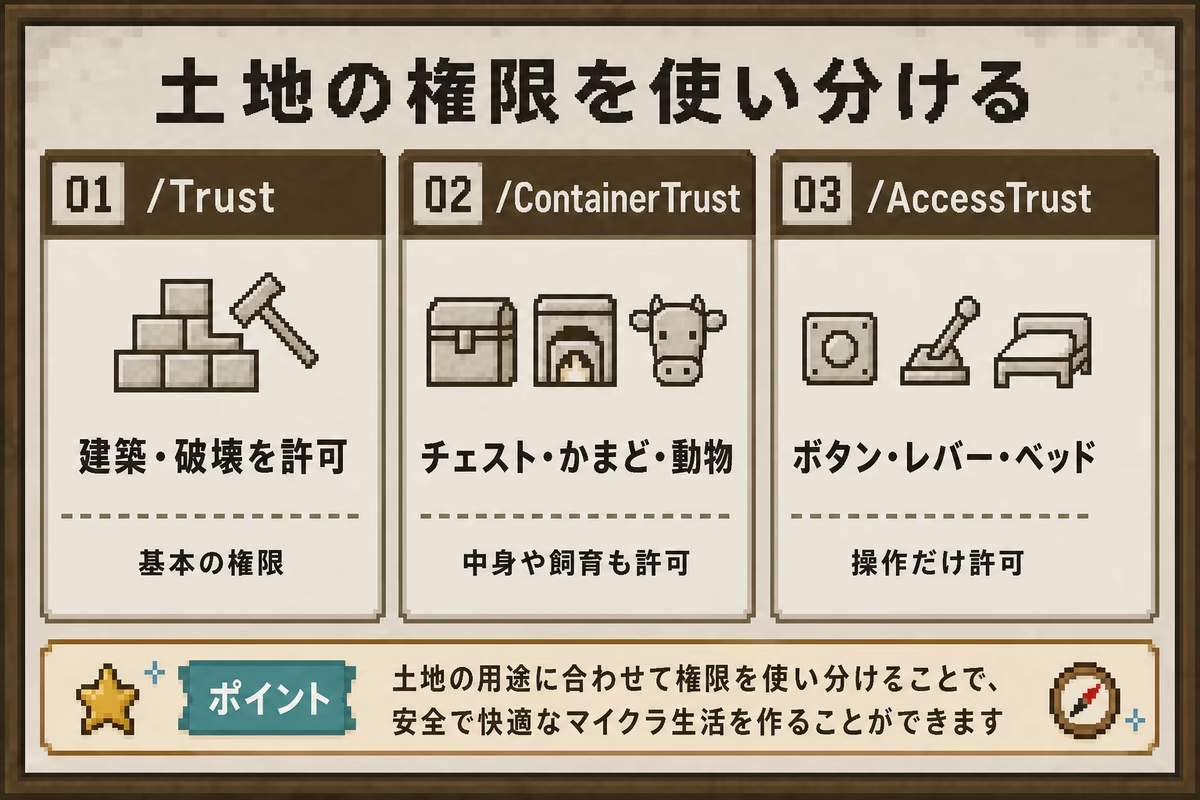
The illustration compares the 3 permission types used most often.
The separate /permissiontrust permission lets someone manage access for other players.
/trust <player>
This grants broad access inside your claim, including building, breaking blocks, and using chests.
Use it for friends and people you build with.
/containertrust <player>
This permits using chests, furnaces, crafting tables, animals, and similar features, but not building or breaking blocks.
/accesstrust <player>
This permits only features such as buttons, levers, and beds.
It is useful for public entrances or facilities where visitors should operate controls without being able to build.
Using /sethome inside a protected claim does not require /accesstrust.
/permissiontrust <player>
This lets the player grant permissions to other people.
Use it for someone who helps manage the claim.
Expanding or shrinking land
- Hold the golden shovel.
- Right-click a corner of your claim.
- Right-click the new corner position.
- The claim expands or shrinks.
Creating or expanding a claim requires claim blocks.
You start with 1,500 claim blocks, so you can claim within that allowance without buying any.
Claim blocks do not increase with time. Buy more with /buyclaimblocks <amount> for 10 Spa Coins per block. Purchased blocks cannot be sold back for money.
/claimslist
/buyclaimblocks <amount>
Abandoning land returns all its claim blocks
Using /abandonclaim returns all the claim blocks used by that claim.
You do not lose any, so you can try a larger area or change your claim’s location without wasting them.
What claims protect on this server
Protected land generally restricts or protects the following.
- Block breaking and placement
- Containers and workstations such as chests, furnaces, and crafting tables
- Buttons, levers, and beds
- Your animals
- Wooden doors, trapdoors, and fence gates
- Surface block damage from creeper explosions in the Building World
At a shared base, grant only the permissions each person needs.
Resource worlds do not support claims, but creeper explosions do not break blocks there. See creeper explosion protection.
For an additional lock on an individual chest
Chest locks protect individual chests separately from land claims.
Someone with land permissions still cannot open an individually locked chest unless you also share that chest with them.
Claim requirements and expiry
- The minimum width is 5 blocks and the minimum area is 25 blocks, making 5 × 5 the smallest claim.
- Long-inactive claims may lose protection after roughly 90 days.
What happens when a claim expires?
Protection is removed. Even then, destroying someone else’s build or taking its contents without permission is against the rules.
Staff may clear long-unused buildings. Cleared buildings and items cannot be restored, so visit important bases regularly.
Using abandoned buildings or land
If you want to use a location occupied by a long-absent player’s building, ask staff rather than demolishing it yourself.
- Note the world and coordinates. A screenshot helps.
- Use
/reporton Discord and explain the location and what you want to use it for. - Staff will check the owner and last login, then tell you whether they will clear it. Do not touch the building while waiting for a reply.
Checking whether land is yours
Use /claimslist to view your claims and remaining claim blocks. Inspect the owner and boundaries of land in front of you with a stick, as described in step 3.
Griefing or accidental permission changes
Perhaps something outside a claim was damaged, a shop trade looks wrong, or you accidentally trusted someone.
You can investigate before contacting staff.
/co inspectAfter entering this command, left-click a placed block or right-click the face bordering a hole where a block was broken.
Chat shows who acted and when. Run the command again to return to normal mode.
See Investigating griefing for full instructions.
After inspecting, note these details and report them to staff.
- The other player’s name
- How many hours or days ago the record says it happened
- World name and coordinates
Report through /feedback message in game or /report on Discord.
Do not repair the scene immediately
Filling or clearing the area adds new records.
Leave it as it is until you have reported it where possible, so staff can understand what happened. Staff decide whether to restore the area; recovery is not guaranteed.
Subdivisions
You can create smaller subdivisions inside a large claim.
This is useful for towns and shared bases.
/subdivideclaims
/basicclaims
/subdivideclaims enters subdivision mode; /basicclaims returns to normal mode. In subdivision mode, right-click two opposite corners with the golden shovel to create a subdivision.