 spa77.works SMPEconomy survival
Player guideGetting started
Getting started
Illustrations and screenshots may show Japanese labels. The text below explains the same features in English.
If this is your first time joining spa77.works SMP, nicknamed 「えこらいふ!」 (Ecolife!), start here.
Follow the links near the end whenever you need more detail.
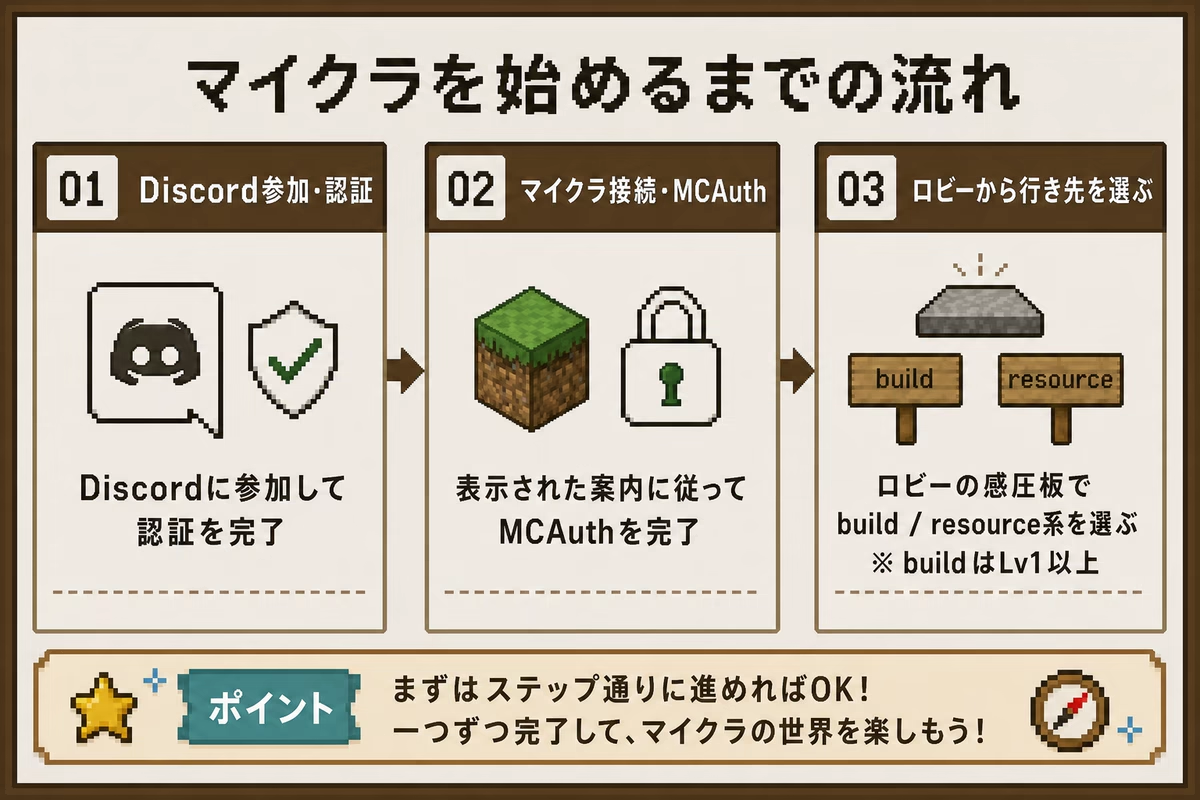
1. Join the server
Joining takes these 4 steps.
1. Join Discord and complete verification
Join the Discord server and complete its verification.
See the Discord beginner guide (Japanese) for instructions.
The human-verification check when joining Discord and Minecraft account verification in step 3 are separate. You must complete both.
2. Find the server address on Discord
The Minecraft server address is not published on this page.
Check the connection details provided on Discord. Java Edition on computers and Bedrock Edition on Switch, phones, PlayStation, Xbox, and the Windows app use different addresses. Choose the one for your edition.
Java Edition requires Minecraft 26.2 or later. Selecting Latest Release in the launcher is sufficient. Keep Bedrock Edition updated to the latest version.
Consoles such as Switch, PlayStation, and Xbox may not let you add external servers directly. Additional platform-specific steps may be needed. See the official GeyserMC console connection guide.
3. Connect once and submit the verification code
Your first Minecraft connection is deliberately disconnected once.
This is expected. The disconnect screen shows a 4-digit code. In Discord’s #認証 channel, press 「認証コードを入力」 (Enter verification code), enter the code in the form, and submit it. See the Discord verification section of the rules for illustrated steps.
4. Reconnect after verification
When Discord displays 「認証しました」 (Verified), connect again from Minecraft.
Codes expire after 5 minutes. Reconnect from Minecraft to obtain a new code if yours expires.
Bedrock names begin with .
When you join through Bedrock, your server name gains a leading ., such as .Steve. Other players must include that dot when using your name in commands.
2. Arrive in the lobby
After verification, you enter the lobby.
This flat world is the server’s entrance.
- Player-versus-player combat, or PVP, is disabled in the lobby.
- Use the dedicated worlds for building and gathering resources, rather than the lobby. Gathering resources in the Building World is prohibited.
There is one guide villager in the lobby.
Look for the name 「スマホ案内係 (右クリック)」, meaning Smartphone Guide (right-click), above its head.
Right-click this villager to open the smartphone menu. If you are lost, speak to the guide.
You can also use /phone, which is recommended
Open chat and enter /phone to open the same menu from anywhere without finding the guide.
- Computer, Java Edition: press T or / to open chat, type the command, and press Enter.
- Phone, Switch, or other Bedrock devices: open the chat-bubble icon at the top of the screen, type with the keyboard, and send.
You also receive a smartphone item on your first visit. Right-click it to open frequently used features. If you lose it, use /phone get to get another.
Three seconds after your first join, the title 「えこらいふ!へようこそ」 (Welcome to Ecolife!) appears in the center of the screen. The subtitle tells you to step on the pressure plate near the ore decoration to reach the Resource World. Chat also tells you to use the 「資源サーバー」 pressure plate near the ore decoration and to use /guide for details.
While you remain in the lobby, an action-bar message at the bottom of the screen repeats the pressure-plate instruction for up to 2 minutes. It stops when you enter the Resource World.
You can also use /guide for a short in-game guide or /rules for rules. These do not cover features such as login rewards or friend invitations. See this site for the full details.
3. Choose a destination from the lobby
The main way to travel between worlds is to choose a destination using the lobby pressure plates or smartphone.
These 2 methods offer different destinations.
| Method | Destinations | How | Best for |
|---|---|---|---|
Smartphone through /phone or the guide |
Resource World, Resource Server 2, Building World from Lv1 | Open the phone, choose 「その他の機能」 (Other features), then 「移動」 (Travel), then the destination | New players; the phone also helps with jobs, land protection, and progress |
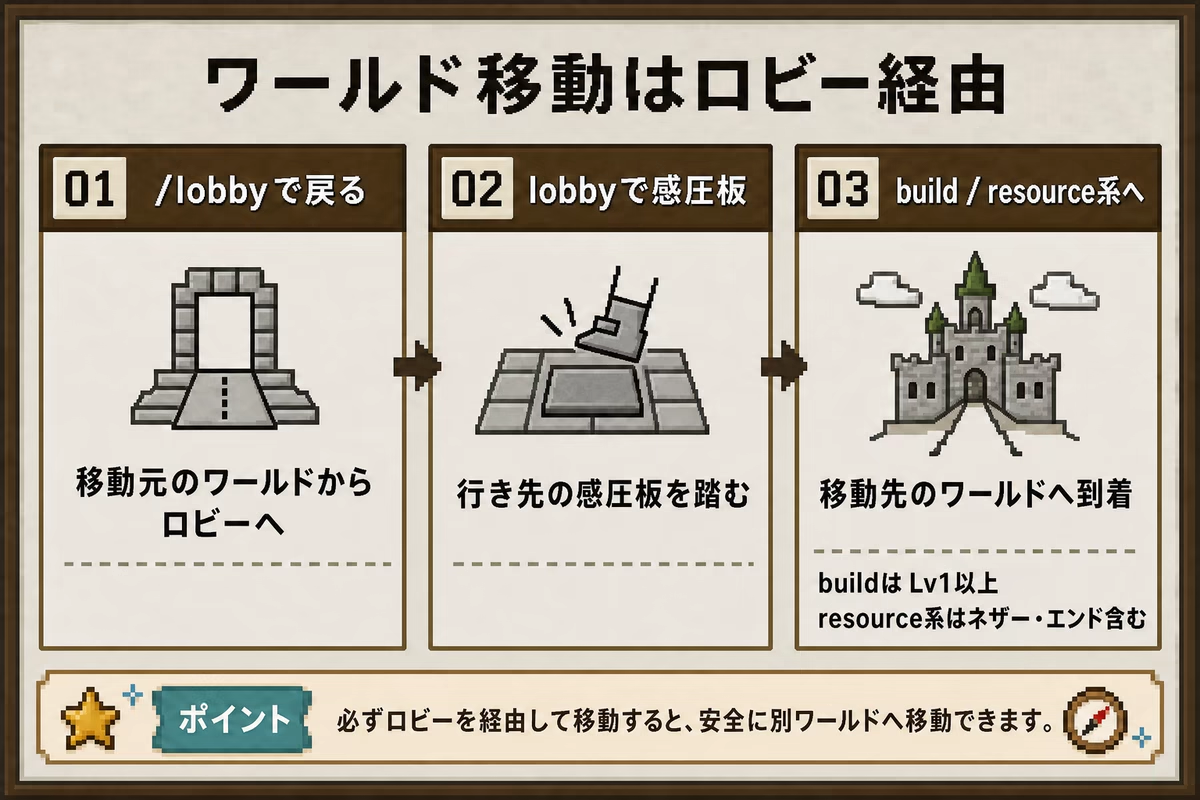
| Pressure plates | Resource World, Building World from Lv1, Resource Nether from Lv1, Resource End from Lv1 | Step on the corresponding lobby plate: east is Resource World, west is Resource Nether, south is Building World, north is Resource End | Players who know the lobby; travel to the Resource Nether or Resource End |
Resource Server 2 has no lobby pressure plate. Use the phone’s travel screen or /mv tp resource2; see Worlds and travel.
To return from your current world to the lobby, use either command below.
/lobby
/l
For 5 seconds after attacking a monster or taking damage, you are considered in combat and cannot return to the lobby.
The following illustration summarizes the travel routes.
Destinations and required levels
| World | Purpose | Required level |
|---|---|---|
| Resource World | Gathering resources | Lv0, available immediately |
| Resource Server 2 | Gathering resources; regenerated weekly | Lv0, available immediately |
| Building World | Building; resource gathering prohibited | Lv1 |
| Resource Nether | Gathering Nether resources | Lv1 |
| Resource End | Gathering End resources | Lv1 |
The Resource Nether and Resource End require Lv1 to help new players avoid losing their belongings in dangerous places immediately.
Only the Resource World and Resource Nether are directly connected by Nether portals, usable from Lv1.
See Worlds and travel for details.
4. First things to check
Once you reach the lobby, the following order is a useful way to start.
The guide villager also provides access to these features.
1. Check your level with /level
Use /level to see your level, active playtime, and completed advancement count.
2. View your completed advancements
Java players can use the standard advancement screen, for example with L. Bedrock players can enter /adv in chat. Lv1 requires 5 advancements, so check what you still need.
3. Take a job with /jobs browse
Open the job list with /jobs browse and click a job to join it.
You can hold 1 job at a time and change it later as often as you like.
4. Prepare a golden shovel for land protection
Use /claimshovel to receive one, up to 1 per day. An ordinary golden shovel crafted yourself also works.
Land protection is available only in the Building World, so you can actually use the shovel from Lv1 onward.
5. Check login rewards with /daily
Your daily reward arrives automatically a few seconds after joining. Use /daily or /bonus to check your status or claim an unclaimed reward. Leave inventory space: excess rewards drop at your feet.
6. Register your inviter with /invite
If a friend invited you, enter /invite <inviter> before reaching 2 hours of active playtime, excluding idle time. At 2 total active hours, your inviter receives 2,000 Spa Coins and you receive 1,000. See Friend invitations.
5. Game chat also appears on Discord
Global in-game chat is linked to a Discord channel.
- Messages sent in Minecraft appear on Discord.
- Messages in the linked Discord channel appear in game.
- Death messages and advancement names are also sent to Discord using official Japanese Minecraft translations.
People who are not currently playing can read the messages, including later.
Do not post private information such as your address or real name.
To send something only to staff
Use /feedback message. It goes to a staff-only destination and does not appear in global chat.
Example: /feedback I cannot find the lobby guide
6. Where to read more
Find the topic you need in the player guide. If you only need a command, use the command reference.
If something goes wrong
If you cannot identify the cause, see the final section below.
A command is missing or unavailable
Check /help and /level first. Availability depends on your level and permissions.
A pressure plate does nothing, or you cannot enter the Building World
Read the on-screen message. If it says you cannot enter yet, you have not reached that world’s required level. Check /level and see Player levels for the exact requirements.
If the arrival point is blocked and you see 「移動に失敗しました」 (Travel failed), wait a little and try the plate again, or report it with /feedback.
Someone damaged your building or chest
Investigate with /co inspect. See Investigating griefing for instructions.
You were suddenly disconnected
A daily backup or weekly or monthly maintenance may be running. Check the times on Maintenance and connection problems.
If you still need help
Send a report to staff with /feedback message in game, or use /report on Discord.