 spa77.works SMPEconomy survival
Player guideShops
Shops
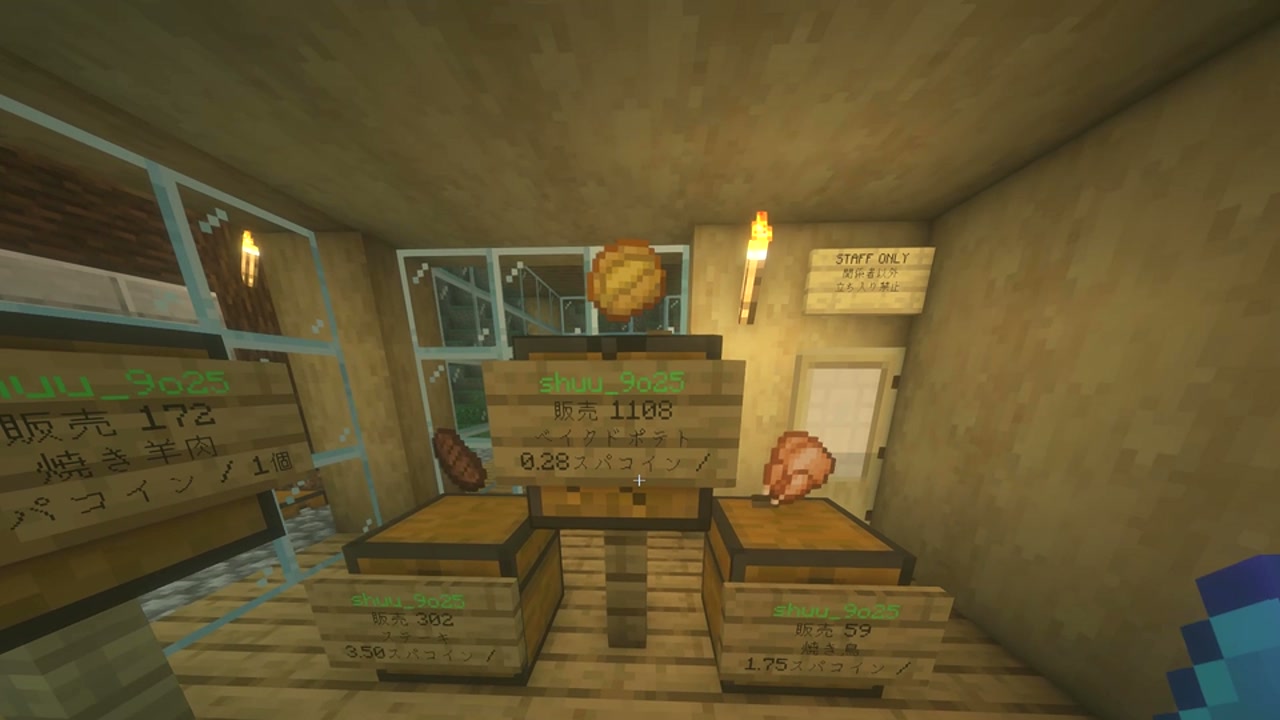
Illustrations and screenshots may show Japanese labels. The text below explains the same features in English.
Use chests to buy and sell items with other players.
You can open a shop by clicking a chest and entering a price, with almost no commands needed.
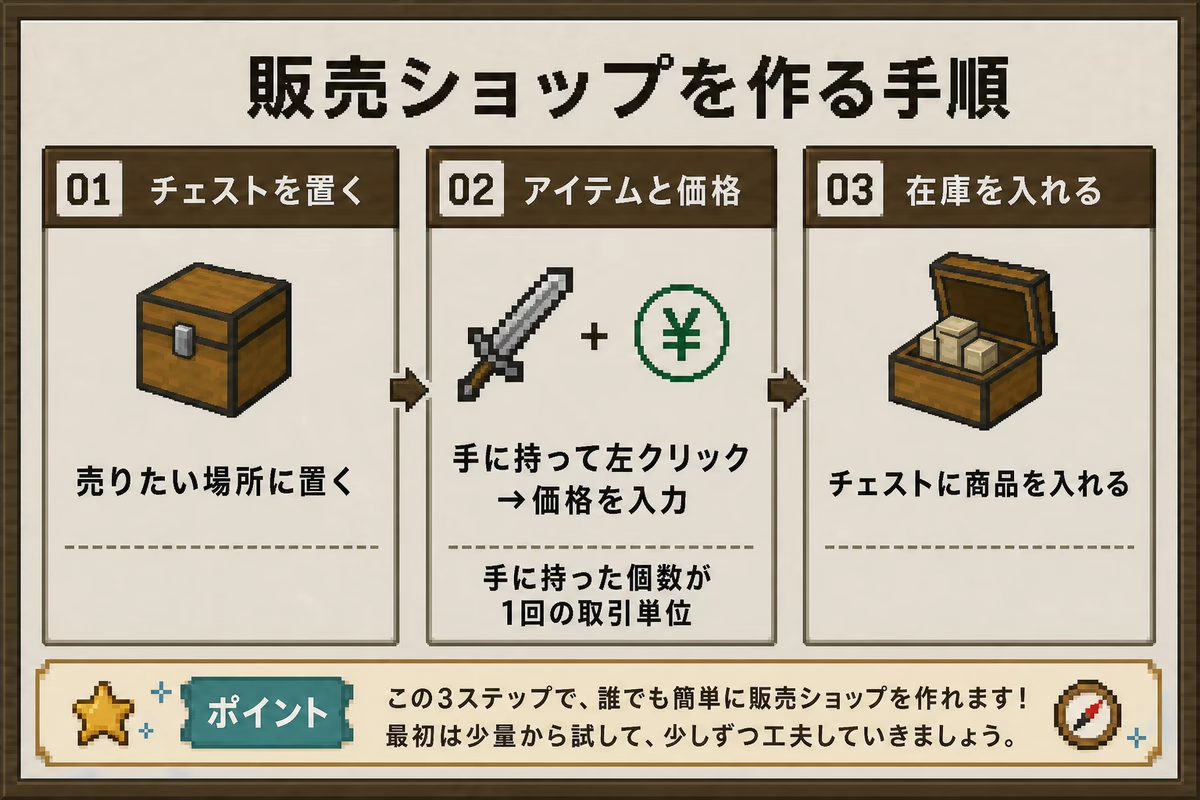
The illustration shows a selling shop
It shows how to create a shop where you sell items.
To buy items from others instead, switch the created shop to /qs buy.
The number of items in your hand when creating the shop becomes the quantity per transaction. The price entered in chat is for that entire quantity.
Holding 1 item creates a price per item; holding 16 creates a price per 16 items. Change the quantity later with /qs size.
Creating a shop
- Place a chest. Trapped chests and barrels work too.
- Hold the item and quantity you want to sell per transaction.
- Left-click the chest.
- Enter the price per transaction in chat, such as
100. - Put stock into the chest.
The shop is ready when a display item appears above the chest and a sign appears beside it.
Prices can be any amount from 0.01 Spa Coins upward, including decimals.
Each new shop costs 100 Spa Coins. You cannot create one without enough money.
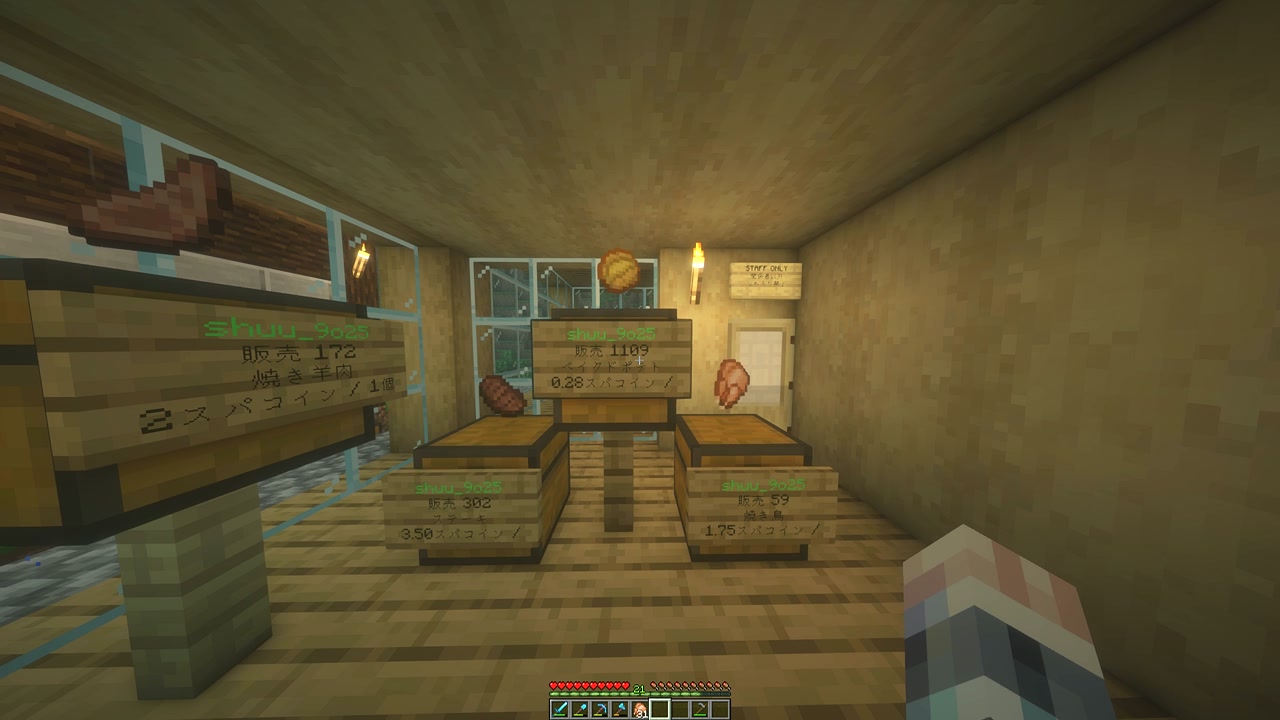
The floating display item is visual only and cannot be picked up.
Unsupported locations and setups
| Restriction | Details |
|---|---|
| Resource worlds | Shops cannot be created in the Resource World, Resource Server 2, Resource Nether, or Resource End. |
| Double chests | Use one single chest, trapped chest, or barrel. Two connected chests are unsupported. |
| Sign space | There must be room for a sign beside the chest or another suitable adjacent position. |
| Prohibited item | Bedrock cannot be traded in shops. |
| Owner-bound items | Items whose lore contains SoulBound cannot be newly listed. |
Switching to a buying shop
Look at the created shop’s chest or sign and enter /qs buy. Return to selling mode with /qs sell.
- A buying shop pays from your balance. Visitors cannot sell to it if you lack funds.
- Instead of stock, the chest needs empty space for purchased items.
- Switching modes is free.
Buying and selling items
Marketplaces have a chest and sign for each product.
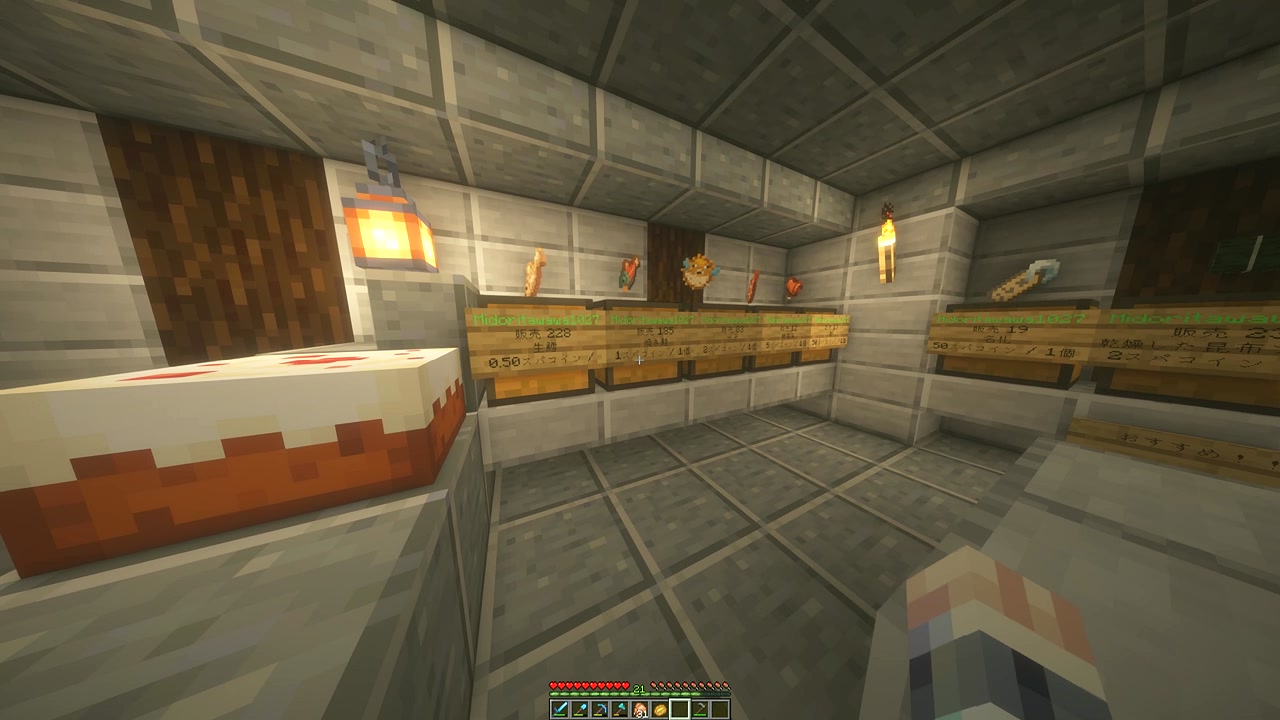
Left-click the sign or chest to be asked in chat how many to buy or sell.
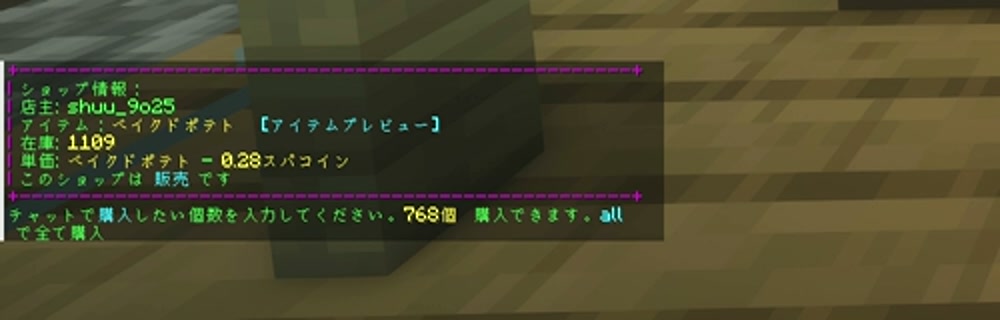
Enter a number in chat to trade. Enter all to buy or sell as much as possible.
Selling shops require the owner to keep items stocked in the chest.
Use /qs find <item> to find shops for an item. It displays up to 10 shops within 45 blocks. There is a 20-second cooldown before you can use it again.
To include distant shops, browse the server-wide list with /qs browse. It shows what is sold and where, but does not teleport you to a shop.
You can buy from your own shop, but this only moves your own money and gives no advantage.
Where sales proceeds go
Money is added directly to the owner’s balance when the sale happens. You do not need to collect it from the chest.
- A chat message identifies the buyer, item, quantity, and money earned.
- Sales while you are offline are also paid immediately. Retrieve missed trade notifications with
/qs fetchmessage. - Your proceeds are the sign price minus a 10% transaction tax.
| Sign price and sales | Buyer pays | Owner receives |
|---|---|---|
| 1 transaction at 100 Spa Coins | 100 Spa Coins | 90 Spa Coins |
| 64 transactions at 10 Spa Coins | 640 Spa Coins | 576 Spa Coins |
Look at a shop and use /qs history to see when, to whom, and for how much it traded. You can view only your own shops and shops where you are staff.
The tax is not shown in the interface
Transaction-tax display is disabled on this server, so neither signs nor purchase screens show “10%.”
Do not treat the sign price as your net proceeds. Allow for the 10% deduction when setting prices.
Buying shops also charge the owner the same 10% tax. Keep spare funds, because the balance change is not simply the exact sign price.
Managing a shop
Right-click its sign to open a control panel in chat. It lets you change the price, switch buying or selling mode, pause trading, or remove the shop.
Right-click the chest to open it normally. Add stock or collect items purchased by a buying shop here.
| Goal | Method |
|---|---|
| Add stock | Open the chest and insert items |
| Collect purchased items | Open the chest and take them out |
| Change price | /qs price <price>, costing 50 Spa Coins |
| Switch buying or selling mode | /qs buy or /qs sell |
| Change quantity per transaction | /qs size <quantity> |
| Change the product | Hold the new item and run /qs item |
| Name the shop | /qs name <shop-name>, free |
| View trade history | /qs history |
| Pause the shop | Right-click the sign and toggle pause |
| Remove the shop | /qs remove or break the chest |
Changing the product or quantity does not require recreating the shop and does not cost the 100-Spa-Coin creation fee.
/qs size accepts up to the item’s maximum stack size, usually 64. Unstackable items such as tools and armor remain at 1.
Adding shop staff
Adding someone as shop staff lets them restock and view transaction history.
| Command | Purpose |
|---|---|
/qs staff add <player> |
Add staff to the shop you are looking at |
/qs staff del <player> |
Remove a staff member |
/qs staff clear |
Remove all staff |
/qs staff list |
List staff |
/qs staffall add <player> |
Add someone to all your shops |
Sales proceeds go only to the owner, not staff.
Removing a shop
There are 2 methods. Both remove the shop completely, including its sign.
1. Use /qs remove
Look at the shop’s sign or chest and enter the command. If confirmation is requested, follow the on-screen instructions.
2. Break the chest
Breaking the chest normally also removes its shop.
Empty the chest before removing it
Items remaining inside scatter on the ground when the chest is broken.
They may despawn if you miss them. Emptying the chest first is safer.
- The 100-Spa-Coin creation fee is not refunded. A removed shop cannot be restored.
- You cannot break only the shop sign. Remove the entire shop to remove its sign.
- At the shop limit, normally 20 or 30 from Lv2, remove unused shops to make room for new ones.
- For a temporary break, right-click the sign and pause instead. Trading stops, but the shop remains.
Shop protection
A shop chest is protected automatically.
- Only the owner, registered shop staff, and server staff can open it. Other players cannot steal its contents; registered staff can restock and manage it.
- Hoppers and droppers cannot extract its contents.
- Explosions such as TNT or creepers cannot destroy it.
- Players other than the owner cannot break the chest.
You therefore do not need a separate Bolt lock on a shop chest. For surrounding land, see Land protection.
Server shop settings
- The in-game interface is Japanese.
- Ordinary players can have up to 20 shops, or 30 from Lv2. At the limit, creation shows 「最大値を超えています」 (Maximum exceeded).
- Shops use the server-wide Spa Coin currency.
- Player-shop commands use
/qs./chestshopand/cshopopen the same interface. /shopis the admin shop, not player shops.- Shops are not automatically deleted because the owner has been offline for a long time.
Paid actions
Creating shops and changing prices have fees.
| Action | Cost |
|---|---|
| Create a shop | 100 Spa Coins |
Change price with /qs price |
50 Spa Coins |
| Switch buying or selling mode | Free |
Change quantity with /qs size |
Free |
Change product with /qs item |
Free |
Add or remove a name with /qs name |
Free |
| Remove a shop | Free; no refund |
Why changing prices has a fee
Each /qs price change costs 50 Spa Coins to discourage price-cutting wars.
Recurring upkeep fees are disabled. Simply keeping a shop does not cost money.
Common problems
| Problem | What to check |
|---|---|
| You cannot create a shop | Avoid resource worlds and double chests, leave sign space, and have at least 100 Spa Coins. |
| You cannot add more shops | The limit is 20, or 30 from Lv2. Remove unused shops with /qs remove. |
| You cannot buy | Check your balance and the shop’s stock. |
| A shop will not buy from you | Check the owner’s funds, buying mode, and chest space. |
| You cannot find a product | /qs find <item> only searches within 45 blocks. Use /qs browse for distant shops. |
| Proceeds differ from expectations | The 10% tax leaves 90% of the sign price. Check actual records with /qs history. |
| The product or quantity is wrong | Change it with /qs item or /qs size; no need to recreate the shop. |
| You missed a sale notification | Read it with /qs fetchmessage. The money was already paid. |
| You cannot pick up the display item | It is a visual display, not a collectible item. |
For other trading options, see the admin shop and auctions. The economy explains the overall money system.
If you see permission errors or a trade seems wrong, ask in the question channel on Discord.